How to Compress Images Without Losing Quality: The Ultimate SEO Guide
imagepixa Team
Image Processing Specialists
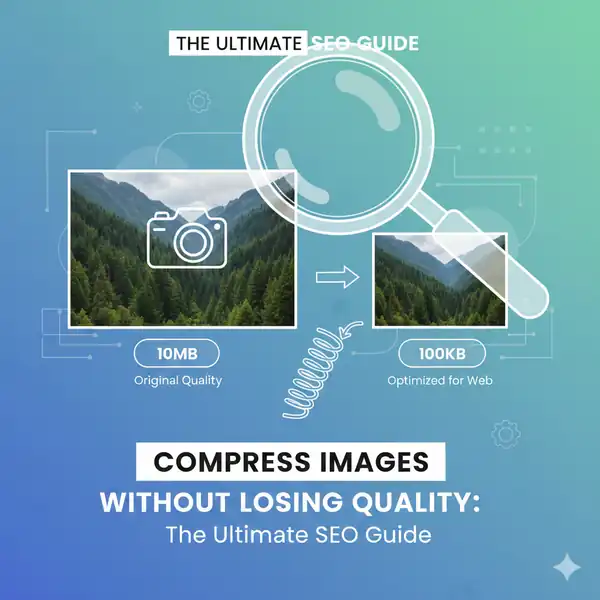
Looking to speed up your website without making your photos look like a pixelated mess? You're in the right place. Learning how to compress images without losing quality is a superpower for any web owner.
Why Image Compression is Critical for SEO
In 2024, Google’s Core Web Vitals are more important than ever. High-resolution images are the #1 cause of slow page loads. When you reduce image size without losing quality, you improve your Largest Contentful Paint (LCP) and keep users from bouncing.
Lossy vs. Lossless: What's the Difference?
The secret to "no quality loss" lies in understanding these two methods:
- Lossless Compression: Removes unnecessary data (like camera metadata) without touching the pixels. The quality remains 100% identical to the original.
- Lossy Compression: Removes redundant pixel data. If done correctly (at around 80% quality), the human eye cannot tell the difference, but the file size can drop by up to 90%.
5 Pro Methods to Compress Images Online
1. Use the WebP Format
WebP is a modern image format that provides superior lossless and lossy compression. It is roughly 30% smaller than JPEG at equivalent quality.
2. Resize Your Dimensions First
A common mistake is uploading a 5000px wide photo to a blog that only displays images at 800px. Always use an image resizer tool to match your display dimensions before compressing.
3. Optimizing JPEGs to 80%
For photographs, a quality setting of 75-85% is the "sweet spot" where you get massive size savings with zero perceivable loss in sharpness.
4. Remove Image Metadata
Every photo contains EXIF data (GPS coordinates, camera model, etc.). Removing this can save several KB without touching a single pixel.
5. Use an Advanced Image Compression Tool
Using an specialized image compression tool ensures that advanced algorithms are applied to find the perfect balance between bits and beauty.
How to Use ImagePixa for Best Results
To get the best results, we recommend a two-step workflow:
- Step 1: Use our Image Resizer to set the width to exactly what you need.
- Step 2: Use our Image Cropper to focus on the main subject and remove unnecessary edges.
Conclusion
You don't have to choose between a fast site and beautiful images. By using WebP, resizing correctly, and utilizing the right tools, you can achieve perfect compression every time. Ready to optimize? Start by resizing your first image today!
Ready to optimize your images?
Resize your photos to the perfect dimensions instantly.