How to Resize Images for the Web: A Complete Guide for 2026
imagepixa Team
Image Processing Specialists
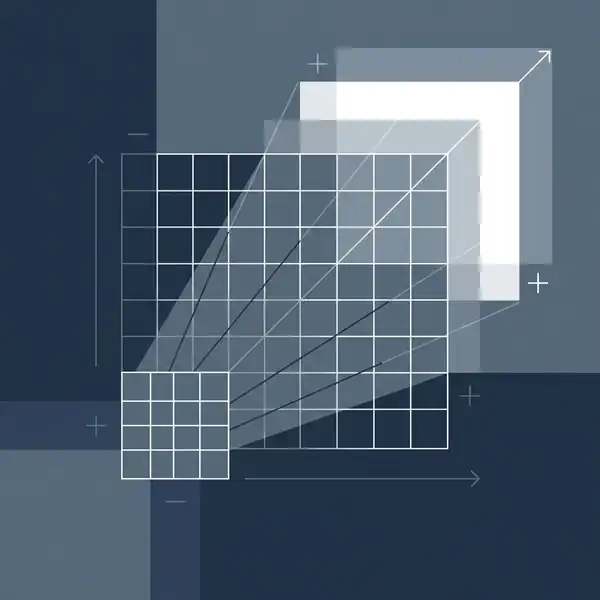
Uploading massive images is the fastest way to slow down your website. Learning how to resize images for the web is essential for better SEO, faster load times, and a happier audience.
Why Image Resizing is Critical
Modern cameras and smartphones take photos that are 4000px wide or more. Most websites only display content at a maximum width of 1200px. If you upload the full-size image, the browser has to download megabytes of wasted data just to shrink it down visually.
By formatting your images to the correct dimensions before uploading, you ensure your images load instantly.
Resizing vs. Compression: What's the Difference?
Many beginners confuse these two terms, but they are different steps in optimization:
- Resizing: Changing the actual pixel dimensions of the image (e.g., from 4000x3000 to 1200x900). This physically reduces the image size.
- Compression: Encoding the image data more efficiently to reduce file size (KB) without changing dimensions.
For the best results, you should resize first, then compress.
Best Image Dimensions for 2026
While every site is different, here are some standard rules of thumb for common web image types:
- Full-width Hero Images: 1920px wide
- Blog Post Content: 1200px wide
- E-commerce Products: 800px - 1000px square
- Thumbnails: 300px - 400px wide
How to Resize Images Online for Free
You don't need expensive software like Photoshop to resize your photos. You can do it right here in your browser, securely and instantly.
1. Choose Your Image
Select the photo you want to optimize. Make sure it's a common format like JPG, PNG, or WebP.
2. Use the Image Resizer Tool
Navigate to our Image Resizer tool. It allows you to:
- Set exact width and height dimensions.
- Maintain aspect ratio automatically to prevent stretching.
- Preview the new size before downloading.
3. Download and Compress
Once resized, download your new image. For the ultimate optimization, consider running it through a compressor or saving it as a WebP file.
Conclusion
Resizing images is a small step that makes a giant impact on your website's performance. Make it a habit to never upload raw camera photos directly to your site. Use the ImagePixa Resizer to keep your site fast and your SEO ranking high.
Ready to optimize your images?
Resize your photos to the perfect dimensions instantly.