What Is WebP Format? Everything You Need to Know in 2026
imagepixa Team
Image Processing Specialists
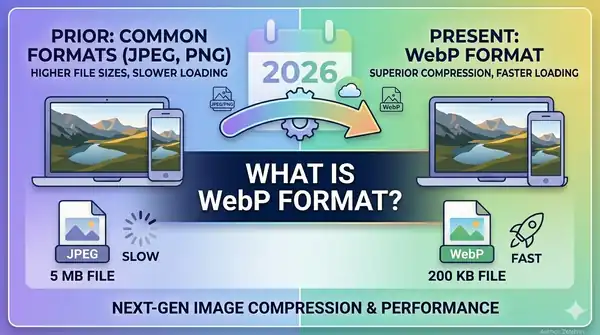
If you've ever wondered why some websites load blazingly fast while others feel sluggish, the answer often comes down to image format. WebP is Google's modern image format designed specifically for the web — and in 2026, it's become the gold standard. Here's everything you need to know about WebP and why you should be using it.
What Is WebP?
WebP is an image format developed by Google and first released in 2010. It was created with one goal: deliver smaller file sizes with the same or better visual quality compared to older formats like JPG and PNG.
What makes WebP unique is its versatility. Unlike JPG (which only supports lossy compression) or PNG (which only supports lossless), WebP supports both lossy and lossless compression in a single format. It also supports transparency (like PNG) and animation (like GIF), making it a true all-in-one solution.
How WebP Works
WebP uses advanced compression techniques derived from the VP8 video codec for lossy compression. For lossless compression, it uses a predictive coding method that analyzes neighboring pixels to predict values, then encodes only the differences.
In practical terms, this means:
- Lossy WebP: Files are 25–34% smaller than equivalent JPG files at the same visual quality (according to Google's studies).
- Lossless WebP: Files are 26% smaller than equivalent PNG files while preserving every pixel.
- Transparency: Lossy WebP with an alpha channel is 3× smaller than a PNG with the same transparency.
WebP vs JPG vs PNG: A Direct Comparison
Choosing the right format depends on your use case. Here's how they stack up:
File Size
WebP consistently produces the smallest files. A photo that's 500 KB as a JPG might be around 350 KB as a WebP — with no visible difference. A PNG logo that's 200 KB could shrink to under 80 KB in lossless WebP.
Image Quality
At equivalent file sizes, WebP images look sharper than JPGs. WebP avoids the blocky "artifacts" that JPG compression creates around text and edges. For lossless images, WebP and PNG are identical in quality — pixel for pixel.
Features
- Transparency: WebP and PNG both support it. JPG does not.
- Animation: WebP and GIF support it. WebP animations are significantly smaller than GIFs.
- Color depth: All three support 24-bit color. WebP and PNG also support alpha channels.
Quick Comparison
| Feature | JPG | PNG | WebP |
|---|---|---|---|
| Compression | Lossy | Lossless | Both |
| Transparency | No | Yes | Yes |
| Animation | No | No | Yes |
| File Size | Medium | Large | Small |
| Best For | Photos | Graphics | Everything |
Browser Support in 2026
In the early days, limited browser support was WebP's biggest drawback. That's no longer the case. As of 2026, WebP is supported by all major browsers:
- Google Chrome (since 2014)
- Mozilla Firefox (since 2019)
- Microsoft Edge (since 2018)
- Apple Safari (since 2020, macOS Big Sur / iOS 14)
- Opera, Brave, and all Chromium-based browsers
With over 97% global browser coverage, there's virtually no reason to avoid WebP in 2026. The rare edge cases (very old browsers) can be handled with a simple <picture> fallback.
When to Use WebP (and When Not To)
Use WebP when:
- Website images: Photos, banners, thumbnails, product images — WebP delivers the best size-to-quality ratio for the web.
- Replacing GIFs: Animated WebP files are much smaller than GIFs with better color support.
- Transparent graphics: WebP with alpha is far lighter than PNG for logos and overlays.
- Performance matters: If you care about Core Web Vitals, page speed, and SEO, WebP is essential.
Consider other formats when:
- Print or professional photography: TIFF or high-quality JPG remain standard for print workflows.
- Archival purposes: PNG or TIFF are better for long-term archival where maximum compatibility matters.
- Email newsletters: Some email clients still don't render WebP — JPG is safer for email.
How to Convert Your Images to WebP
Converting your existing images to WebP is straightforward. You can use ImagePixa's tools to prepare your images for the web:
- Use the Image Resizer to resize your images to the exact dimensions you need.
- Use the Crop Tool to trim images to the perfect aspect ratio.
- Need to change formats first? The JPG to PNG Converter handles format switching instantly.
For bulk conversion, many CMS platforms and build tools (like Eleventy, Next.js, and WordPress plugins) can automatically convert images to WebP during the build process.
Pro Tip: Always compress your images before uploading them. Even WebP files benefit from proper sizing and quality optimization.
Conclusion
WebP has evolved from an experimental format to the default choice for web images in 2026. With universal browser support, superior compression, and features that cover every use case — from transparent logos to animated banners — there's no reason not to adopt it.
The switch is simple: resize and optimize your images with ImagePixa's free tools, and let your CMS or build process handle the WebP conversion. Your users (and your SEO rankings) will thank you.
Ready to optimize your images?
Resize your photos to the perfect dimensions instantly.